![CLiKAPAD-LogoBLACK- 800x128 300dpi AntiAliased-1.jpg]](https://knowledge.clikapad.com/hs-fs/hubfs/CLiKAPAD-LogoBLACK-%20800x128%20300dpi%20AntiAliased-1.jpg?width=300&height=48&name=CLiKAPAD-LogoBLACK-%20800x128%20300dpi%20AntiAliased-1.jpg)
The sound will play as soon as you open a vote when using a count up vote (where the number of votes cast is shown).
For count down votes, if the audio file is shorter than the timer, it will start playing the audio to end when the timer reaches 0. e.g. for a 10 second count down vote, with a 3 second audio clip, the sound will start to play after 7 seconds (when 3 seconds are left on the timer). If the audio clip is longer than the vote timer, it will play as soon as the countdown is started.
Remember that the sound will cut off instantly when you close the vote if it is longer than the vote duration. It will not fade out. For that reason we recommend deciding how long you wish to keep the voting open for and then creating a file of the right length that is already edited to fade out nicely. Our support team can assist with editing sound files if needed but the service would be chargeable.
Once you have your audio file ready follow this process to add it to your voting slides.
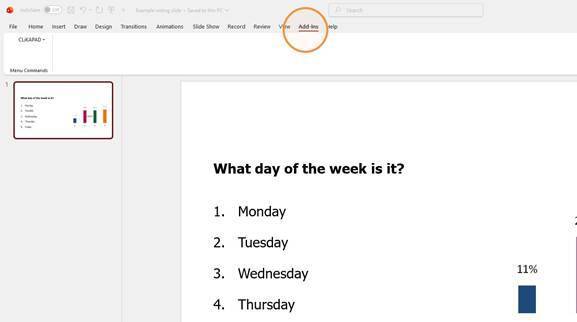
- Click "Add-ins"
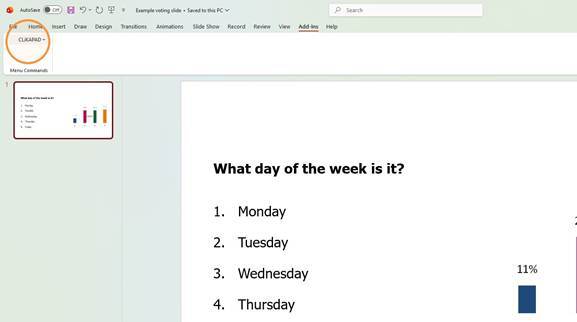
- Click "CLiKAPAD"
- Click "Slide Editor"
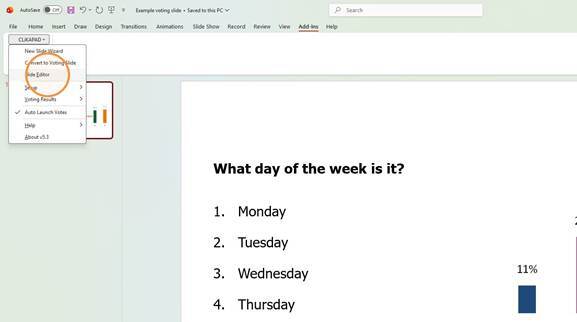
- Click "Options"
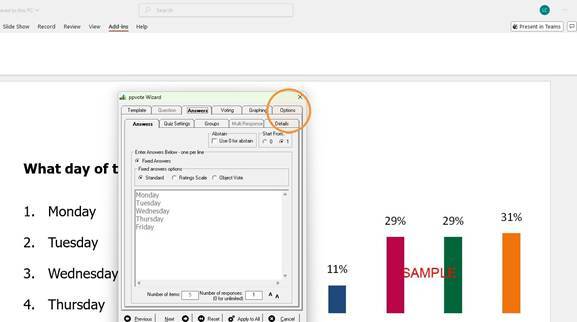
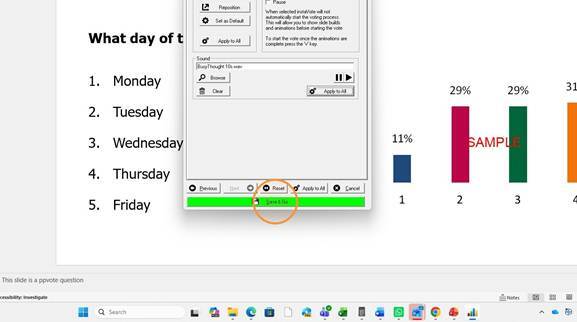
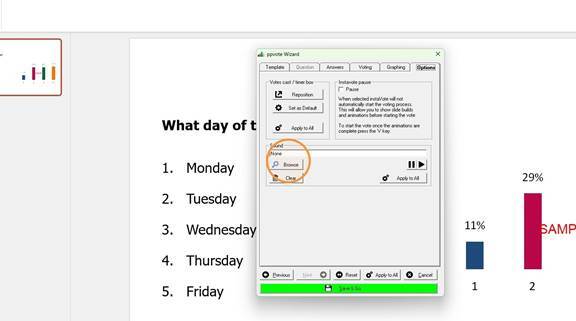
- Click "Browse" under Sound
 Double-click the "10s" folder if you wish to use one of our standard 10 second sound clips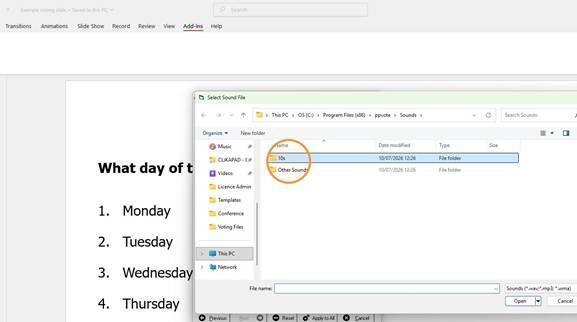
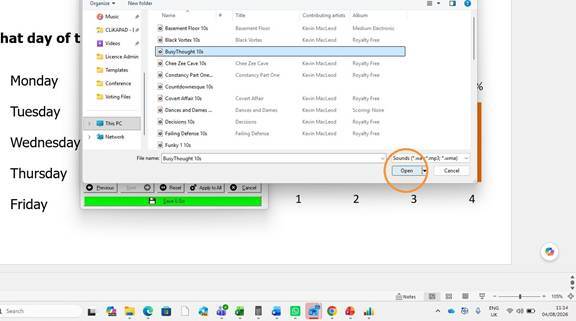
- Select the sound you wish to use by clicking on it. Please note that if you are using a sound file that you have created or obtained elsewhere, you must check that it is a supported format (WAV, MP3 or WMA).
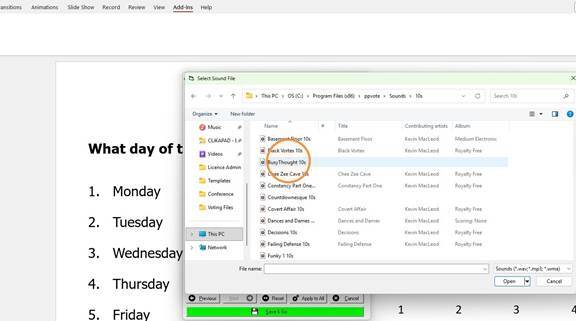
- Click "Open"
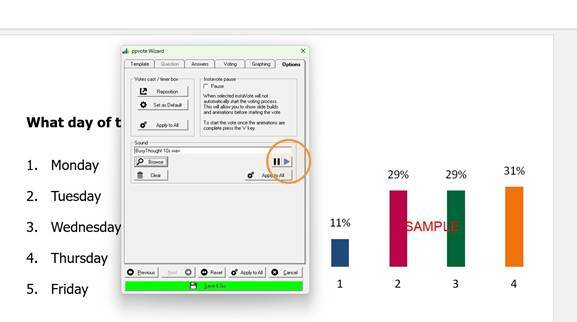
- Play the selected sound to ensure that you have chosen the right file.
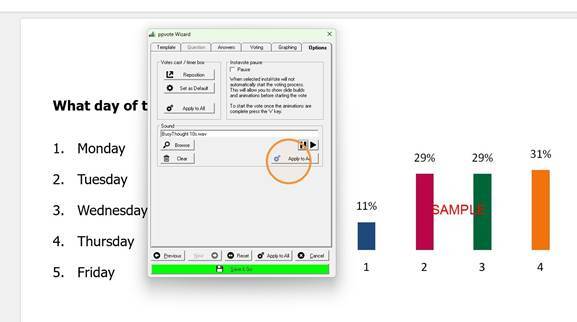
- Click "Apply to All" if you wish to add the sound to all voting slides within the current presentation. Please note, this will only apply it to slides that already exist, it will not add the sound to new ones, so you may wish to wait until you have created the whole presentation and then add the sound and apply to all.
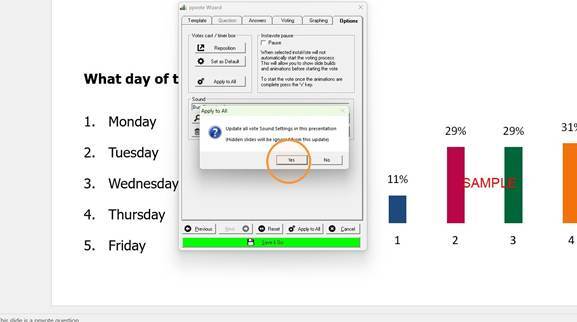
- Click "Yes" if you want the sound applied to all slides
- Click "OK"
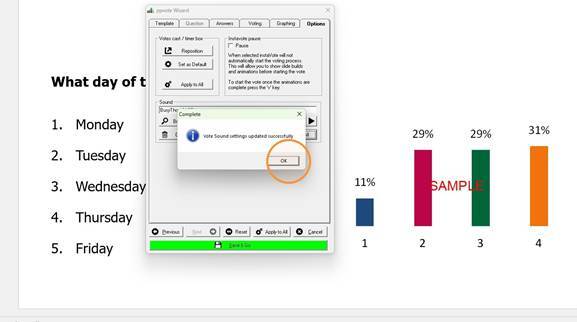
- Click "Save & Go"