How do I set up virtual keypads?
This article explains ONLY how to connect your voting presentation to an online meeting code that you have already created.
Setting up your virtual keypads
These instructions focus on setting up for the first time. If you have used virtual keypads before with a different meeting code to the one you wish to connect to now, please remember to remove that meeting from the keypad set up screen before clicking the Remote Setup button and connecting the new meeting code.
Open PowerPoint
Go to Add-ins > CLiKAPAD > Setup > Keypads > Remote Setup
Click the relevant remote meeting, then click OK
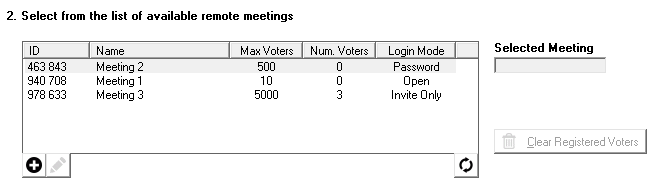
The keypad low and high numbers will be automatically allocated based on the number of keypads defined in the online set up of the meeting.
Click on test and then vote on at least one device. The instructions for joining the meeting are on the last page of this guide

If you previously used physical keypads
Open PowerPoint
Go to Add-ins > CLiKAPAD > Setup > Keypads
The background of the ‘Type’ cell will be red to warn you that you do not have a receiver connected
Click on the red cell and the option to Remove will appear.
Once the receiver has been removed, go to Remote Setup
Setting up physical and virtual keypads to use together
Open PowerPoint
Go to Add-ins > CLiKAPAD > Setup > Keypads
Add the low and high numbers of your CLiKAPADs
Then click on Remote Setup
Click the relevant remote meeting, then click OK
The virtual keypads will automatically be allocated numbers that run on from your physical keypads